
Turn messy phone notes into clean, 30-second mobile work orders with zero code.
You can set up HVAC job card automation Make.com workflows in about 30 minutes by connecting a mandatory Tally form to your Airtable dispatch board. When a call arrives, Tally captures the postcode, gate code, boiler model, and fault photo, while Make.com checks your Airtable Customers table by phone number so repeat callers link to their past history instead of creating duplicate rows. In our earlier guide on HVAC Job Cards: Why Standardizing Handoffs Saves 20 Minutes on Every Call, we showed how incomplete notes stall technicians in driveways. Here is the exact no-code build.
Why Office Phone Notes Break Your Dispatch Board
In Day 1: How to Build an HVAC Single Truth Board, you created four linked Airtable tables (Customers, Technicians, Jobs, and Activity Log). That board handles live tracking, yet it still relies on what the office types into each card.
When dispatchers jot notes on paper or type long paragraphs, techs miss critical details. Building Engineering Services Association (BESA) research shows unstandardized shops lose 15 to 20 minutes per call chasing access codes, parking rules, or unit models. Typing a repeat caller's name differently also creates duplicate profiles that hide past repair history.
A structured intake form solves both problems by refusing to submit until every required box is filled.
Step 1: Build the Mandatory Tally Airtable Job Intake Form
Open Tally and create a form named HVAC Job Card Intake. Office staff keep it bookmarked during inbound calls, and homeowners can fill it out directly via a link.
Add these seven fields and toggle Required on the first six:
| Order | Tally Question | Type | Required? | Why Your Tech Needs It |
|---|---|---|---|---|
| 1 | Customer Full Name |
Short Text | Yes | Identifies the homeowner. |
| 2 | Mobile Phone |
Phone | Yes | Matches repeat callers and Twilio SMS. |
| 3 | Street Address & Postcode |
Short Text | Yes | Feeds Day 3 route zones. |
| 4 | Gate Code, Key Safe & Parking |
Short Text | Yes | Stops driveway phone tag ("None" if open). |
| 5 | Equipment Brand & Model |
Short Text | Yes | Checks van stock ("Unknown" if new). |
| 6 | Exact Customer Symptom |
Long Text | Yes | Captures fault codes (e.g., "E119 blinking"). |
| 7 | Boiler or Thermostat Photo |
File Upload | No | Shows error lights before entry. |
Keep everything on one page so staff finish intake in 45 seconds. Under Settings, disable extra confirmation screens so coordinators hit Submit and click Fill again for the next call.
Step 2: Wire Make.com to Prevent Duplicate Airtable Records
Open Make.com and create a scenario named Day 2 — Standardized Job Card Intake. It catches each Tally submission, cleans the phone number, checks for an existing customer, and creates a clean card on your Day 1 Jobs table.
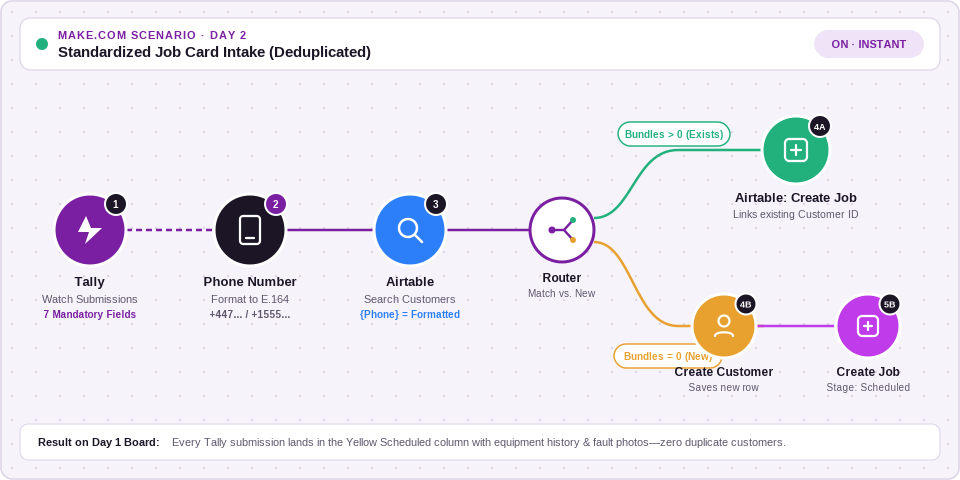
Build these four steps in Make.com:
- Trigger — Tally (Watch New Submissions): Select HVAC Job Card Intake and submit one test entry so Make.com learns the fields.
- Phone Formatter — Phone Number: Convert the caller's number to international E.164 format (
+447700900123or+15551234567) so searches match even with spaces or leading zeros. - Search — Airtable (Search Records): Point at
HVAC Operations Hub→Customers. Set Formula to{Phone} = '1. Formatted Phone'and Limit to1. - Router — Existing vs. New Customer: Split into two branches:
- Branch A (Exists): Filter
Total number of bundlesGreater than0. Add Airtable — Create a Record onJobsand map the existingCustomer Record ID. - Branch B (New): FilterTotal number of bundlesEqual to0. Add Airtable — Create a Record onCustomersfirst, then Airtable — Create a Record onJobsusing the newCustomer Record ID.
Matching on the cleaned phone number ensures repeat callers keep their full equipment history.
Step 3: Turn Intake Into an Automated HVAC Work Order
In your Day 1 Jobs table, add four columns: Equipment Model (Single line text), Symptom (Long text), Access & Parking (Single line text), and Site Photos (Attachment).
In both Make.com Jobs modules, map these fields:
- Set
StagetoScheduledso the card lands in the Yellow column of your Day 1 Kanban board. - Map
Gate Code, Key Safe & ParkingtoAccess & ParkingandExact Customer SymptomtoSymptom. - Map Tally's
Boiler or Thermostat PhotoURL array toSite Photosso Airtable shows a thumbnail on your tech's phone.
This gives engineers complete context in 30 seconds at the curb. Field benchmarks tracked by Exoserva show average HVAC repair teams hit a 76% to 82% first-time fix rate, while top shops reach 90% or higher because techs see unit and fault history before rolling the van.
Production Guardrails: Phone Formats, Photos & Missing Fields
Add three quick safeguards before going live:
| Intake Pitfall | What Goes Wrong | 1-Minute Fix |
|---|---|---|
| Inconsistent Phone Typing | Typing 07700 900123 vs +447700900123 creates duplicates. |
Pass Tally phones through Make.com's E.164 formatter first. |
| Huge Homeowner Photos | Uncompressed photos load slowly on weak van signal. | Cap Tally's file upload limit at 10 MB per photo. |
| Unknown Unit Model | Callers do not know their boiler model, blocking submit. | Have staff type "Unknown — verify on site" instead of blank. |
FAQ & Next Steps
What fields should an HVAC job card intake form include?
Include seven fields: Customer Full Name, Mobile Phone, Street Address & Postcode, Gate Code & Parking, Equipment Brand & Model, Exact Customer Symptom, and an optional Photo Upload. Making the first six required stops incomplete cards from reaching dispatch.
How do you prevent duplicate customers in Airtable from Tally?
Format the incoming phone number to E.164 inside Make.com, then run Airtable Search Records on your Customers table. Use a Router to link the existing Customer Record ID when found, and create a new customer row only when zero matches return.
Can Make.com send Tally photo uploads straight to Airtable?
Yes. Map the file URL array from Tally's File Upload field into an Airtable Attachment column inside Create a Record. Airtable fetches the image and displays a thumbnail in the technician's mobile view.
Every job entering your Day 1 board—built from The "Busy but Broke" Trap in HVAC—now arrives standardized and deduplicated.
Next in Day 3: With verified postcodes on every card, we will connect Google Maps to assign jobs by territory in Day 3: How to Build a Zone-Based HVAC Route Scheduler Using Make.com & Google Maps. Want help wiring your stack? Explore our HVAC automation solutions to schedule an operations audit.
Want this deployed for your enterprise?
Axontick engineers architect, benchmark, and deploy custom enterprise autonomous systems with guaranteed uptime, sub-second latency, and 100% IP ownership.

Muhammad Asim
Founder @ AxontickFounder of Axontick, specialized in AI automation, Multi-Agent Systems, and enterprise-grade voice agents. Expert in bridging the gap between complex AI technology and practical business solutions.